
Frequent Questions (FAQ)
Why is part of the display cut off on the smart phone?
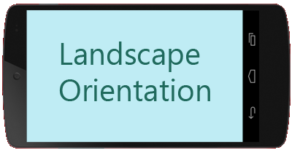
Adjust your smart phone to allow Landscape Orientation then hold your phone horizontally when it is needed. (Landscape Mode)
What is Main Street?
Main Street is the name given to the principle passageway through and between buildings. Main Street will take you by restaurants, show you which level to transfer to via an elevator if needed, and level of trans-building crossovers in order to reach your final destination. You will find Main Street clearly marked in RED on all Directions Signs, Elevators, and significant turns in the passageways. There’s also a full campus map showing the RED Main Street by clicking on the FWM Icon, At-a-Glance Icon, Buildings page, then Building Links
How can I learn more about Find My Way?
The FMW User's Guide gives full details of how to use every tool available at this site. A link to this page can be found at the At-a-Glance page or by using links that drop down from the full menu at the top of the page (or 3 dots at the top right of a phone display)
I have trouble finding Find My Way. How can it be made easier?
The best way to access FMW on your Mobile device is to install a FMW Icon. For instructions, go to: Menu/Help/One Click. Or, you can simply click HERE
Find My Way can be found by using any browser and entering the URL address: www.HSDCommunity.org and selecting the Find My Way icon.
When in the MyErickson app, you can search on the word "wayfinding". Or, you can click on the Community Info icon, scroll down to Find My Way and click on it.
Why do all the maps have South at the top instead of North?
The site is intended for use primarily by new residents or delivery persons. Placing South at the top of the map is a "Heads Up" view that would be seen by a person who first enters through the main gate. This is a similar convention used at the elevators or, by the GPS displays in your automobile. To reduce confusion, all maps include a graphic showing its North Orientation.
Some instructions seem to be incomplete - not telling you the last steps once you've entered the destination building.
Detailed directions from entering the building to the door of each sought-for room have now been added to the Room-Finding search displays (Find All Rooms, Find Food...etc).
the Find a Room icon will allow you to choose your originating building, and your destination room. Once you have done this, click the red banner “Get Map & Directions”. The short, detailed Directions are found below the Room Search label and just above a floor plan showing the desired room in a floor plan of the level it is located on. From there scroll down you will find a campus map showing you building-to-building directions which gives you an overview of where to go. From there scroll down to the written directions. Once the directions stop of the destination building, scroll down a bit more and additional directions have been added to bring you to the desired room.
How can I minimize data minute usage while using this website?
Log on to the "Guest" WiFi option.
Contact the Find My Way Team at FMW.HSD@gmail.com with any questions or comments.